School cafeteria POS

A cafeteria POS that keeps every checkout decision in view.

Identify the buyer, confirm the account, read the available balance, and build the open order from the assigned menu—all without losing the context of the lunch line.

  • Buyer verification
  • Live wallet context
  • Assigned-menu ordering

Main Lunch

One buyer. One clear order.

Line active
01

Find the buyer

Name, school ID, or lunch card

02

Confirm identity

Profile and account status in view

03

Read wallet context

Available after open-order holds

04

Select from the menu

Active items, categories, and prices

Buyer confirmed

Ready for menu selection

Next decision

Add an item

Experience the workflow

Try the lunch-line decisions before you book a demo.

Search a sample buyer, switch profiles, filter the assigned menu, add items, and correct quantities. Nothing is submitted and no account is required.

This preview follows the same information hierarchy as the guided tour and live checkout workspace.

Interactive product preview
Sample data only

Main Lunch

Cashless Cafeteria POS

Selected menu

Standard Lunch

Active items and saved prices

Menu selections update the sample open order immediately—just like the guided product workflow.

Sofia Martinez is selected and ready for review.

A repeatable checkout rhythm

The next safe action stays easy to spot.

The workspace brings the person, wallet, order, and assigned menu together so staff do not have to reconstruct the context at each step.

01

Find the correct account before charging

Staff can use supported lookup and lunch-card workflows to locate the student or staff member and confirm the displayed profile before checkout.

  • Name-based lookup
  • Lunch-card support
  • Visible account confirmation
02

Build orders from the active menu

Configured items and prices keep the checkout experience aligned with the school’s current menu and service line.

  • Current menu items
  • Consistent prices
  • Clear order totals
03

Leave a usable transaction record

Completed orders feed account history and reporting so authorized school users and families can understand the activity later.

  • Recorded order details
  • Account balance updates
  • Reporting-ready activity

Clarity under pressure

Built around the details that prevent confusion.

A cafeteria POS should make identity, account state, menu availability, and order changes legible at a glance—not hide them behind extra screens.

Identity stays visible

Confirm the buyer before the order grows.

The selected person’s name, type, school identifiers, lunch card, and account status stay next to the order context staff need.

Wallet context

See available balance as the session changes.

Open-order holds, configured minimums, and low-balance warnings are reflected where staff make item decisions.

Assigned menu

Keep the service line on its active menu.

Category filters, saved item order, colors, active status, and school-managed prices shape the checkout workspace.

Protected history

Correct this interaction without rewriting the past.

Current-session quantities can be adjusted while previously posted cafeteria activity remains visually distinct and protected.

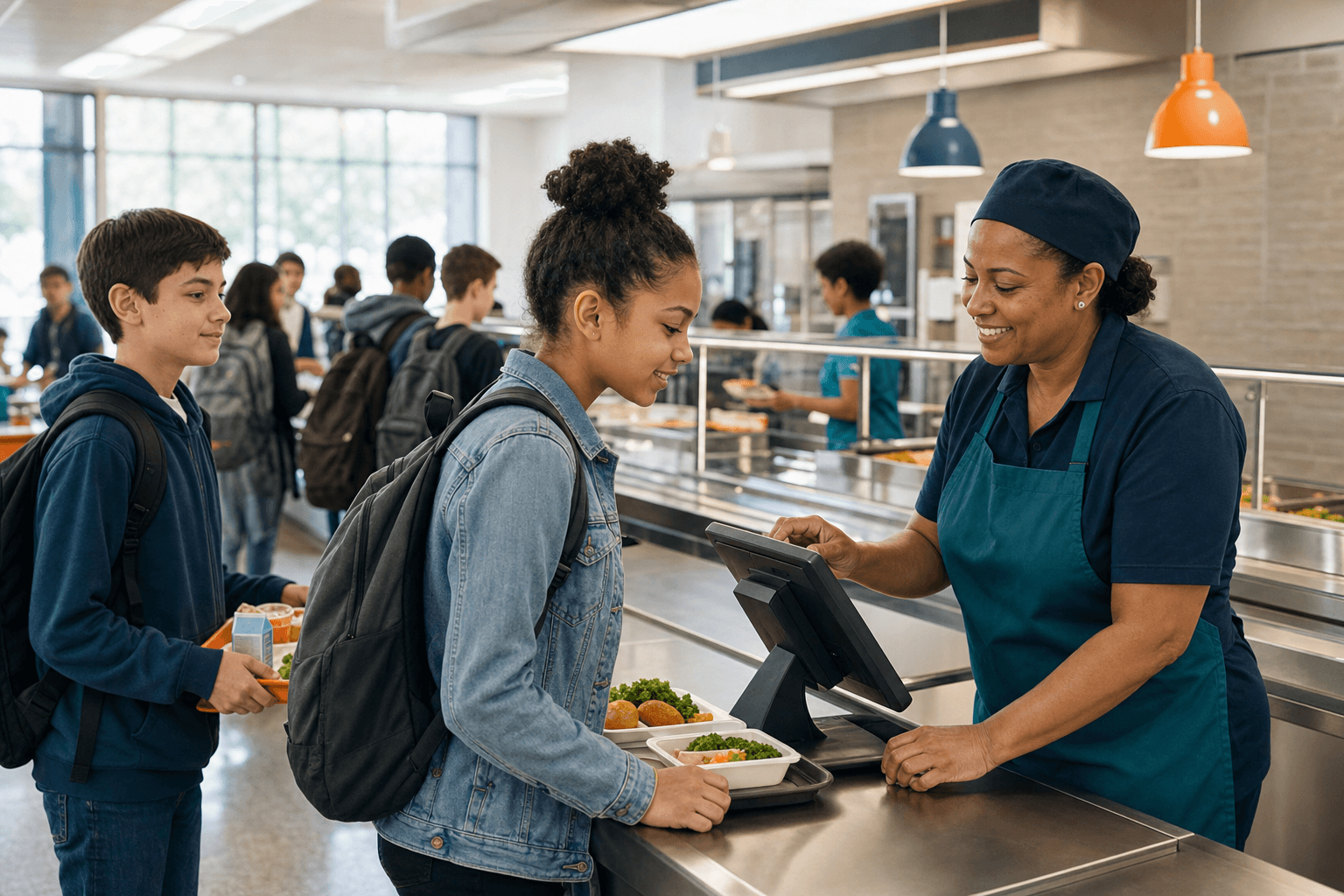
Cafeteria team member using the Cashless Cafeteria checkout dashboard

Operational continuity

The open order stays attached to the correct buyer as staff move through the line.

From service to record

Checkout is one part of a connected cafeteria day.

Open orders belong to the selected buyer and service line. When authorized staff close and process the line, that activity can continue into household wallet records and operational reporting.

  • Buyer continuity

    Previous and Next return to recent buyers without mixing their open orders.

  • Permission-aware actions

    Operating checkout and processing a service line remain distinct staff responsibilities.

  • Usable history

    Authorized school teams and families can understand completed cafeteria activity later.

Frequently asked questions

What school teams usually ask about POS checkout.

Need to review your specific service-line setup? We can walk through it with your team.

Can staff verify a student before checkout?

Yes. The checkout flow displays the selected profile so staff can confirm the correct account before completing an order.

Does checkout use the school’s configured menu?

Yes. The POS uses menu, item, category, pricing, and service-line configuration managed by authorized school users.

How does the POS handle low or limited balances?

The workspace shows available wallet context and configured warnings. Items that would move the household below its allowed minimum are unavailable for the current order.

Can staff correct an item after selecting it?

Authorized POS operators can adjust or remove quantities added in the current session while previously posted purchase activity remains protected.

Bring your cafeteria workflow into the conversation

Review how buyer identification, menu setup, wallet safeguards, and service-line processing would fit your school.