01
Prepare a checkout-ready catalog
Organize items, categories, prices, visual details, and availability so the checkout team sees the right choices.
- Item categories and presentation
- School pricing
- Active availability
Menus and reporting
Build the item catalog, compose reusable menus, prepare service lines, and connect the day’s sales, payments, wallet activity, and item performance in one operational story.
Today’s operation
Main Lunch Service
Catalog
36 active items
Menu
Main Cafeteria
Service line
11:00–1:30
Operational snapshot
Month to date
Sales
$8,612
Orders
1,146
Items
1,904
Experience the operational handoff
Choose catalog items, see readiness change, and switch into reporting views for sales, service lines, and payments. Every interaction uses sample data and stays entirely inside this public preview.
This preview does not access school records, call application APIs, or save configuration.
Cafeteria operations
Main Lunch · Sample workspace
Configuration with a purpose
Catalogs, menus, and service lines are related but distinct. That structure helps authorized teams change a price, reuse a menu, or adjust a service window without rebuilding the entire lunch operation.
Organize items, categories, prices, visual details, and availability so the checkout team sees the right choices.
Compose menus from active catalog items, then associate them with the line, meal period, hours, and account rules used during service.
Choose the report that matches the question, from sales and quantities to payments and account balances.
From setup to evidence
Reporting is more useful when it reflects the same items, menus, lines, buyers, payments, and accounts that drive cafeteria service.
Create active items, categories, prices, and presentation details that checkout can reuse.
Select and arrange catalog items once, then keep that menu ready for repeat service.
Connect the menu to the right line, meal period, hours, and account safeguards.
Review completed activity by day, line, buyer, item, cashier, payment, or account balance.
Catalog control
Active catalog records become the reusable building blocks of every cafeteria menu.
Reusable setup
Menu composition stays separate from service-line scheduling, so changes remain intentional and easier to review.
Readiness checks
A complete menu, assigned line, service window, and wallet rules create a clearer operational handoff.
Connected reporting
Authorized views connect sales, quantities, lines, buyers, cashiers, top-ups, and account balances without flattening them into one vague number.
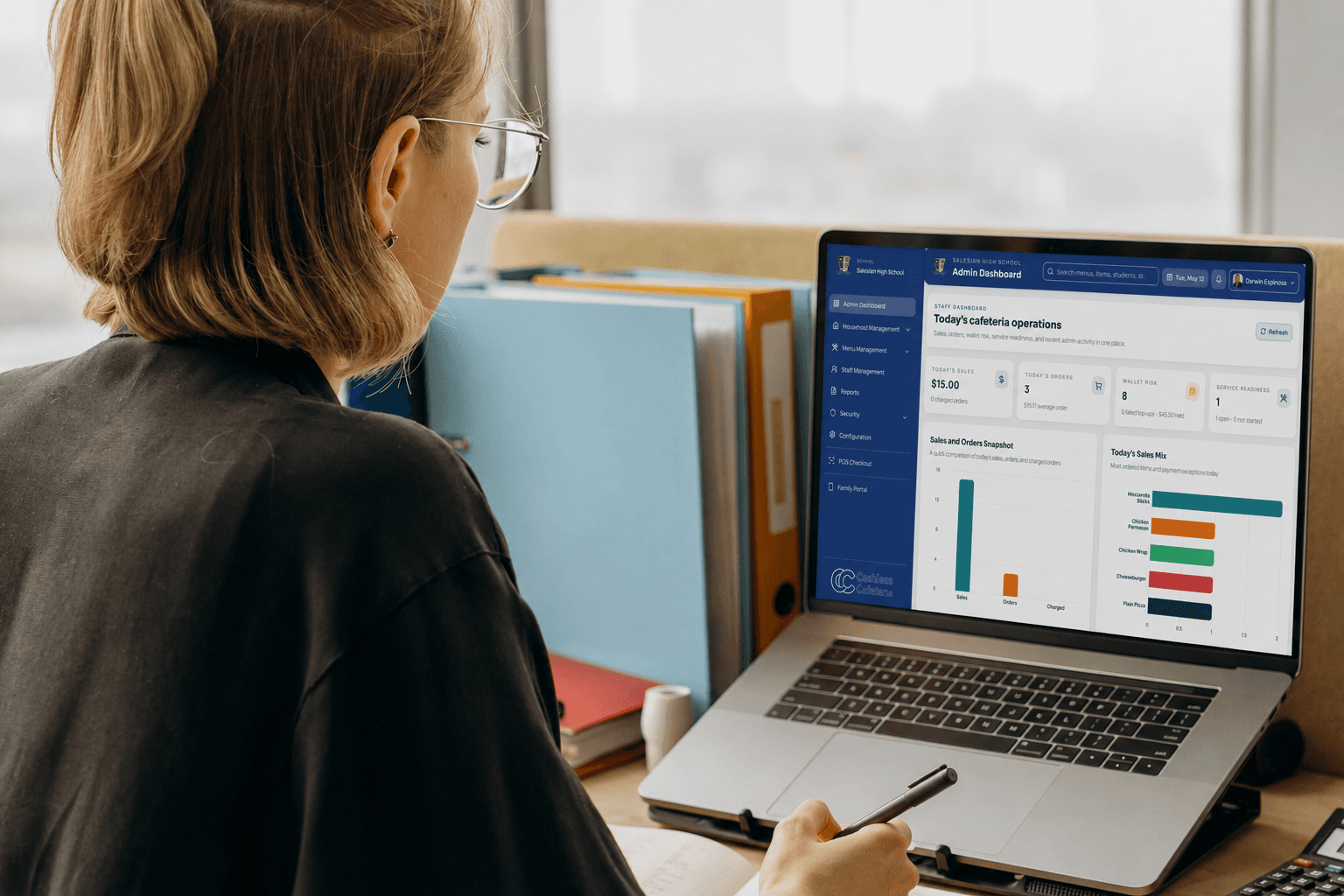
Operational context
See the items, lines, payments, and balances behind the daily totals.
Reports that answer real questions
Authorized school users can choose the reporting dimension that matches the decision in front of them—from service volume and item demand to funding activity and account balances.
Service performance
Compare completed orders and quantities by day, cafeteria line, or cashier.
Item performance
Understand which configured items produced the quantities and sales in the selected period.
Funding and balances
Review top-up activity and the account movements behind beginning and ending balances.
Keep exploring
Related workflow
Manage school cafeteria payments, student meal accounts, staff access, menus, and reporting. Plan setup and daily service with Cashless Cafeteria.
ExploreRelated workflow
School cafeteria POS software for student lunch cards, verified checkout, meal account balances, menus, and purchase history. Explore the POS and request a demo.
ExploreRelated workflow
Compare school cafeteria POS systems with a vendor scorecard, pricing checklist, seven demo scenarios, and questions about hardware, migration, and support.
ExploreFrequently asked questions
Need to map menu setup, line readiness, permissions, or reporting to your school? We can walk through the complete operational flow.
Yes. Authorized users can compose reusable menus from active catalog items and assign the appropriate menu to each cafeteria line.
Yes. Each line can be configured with its menu, meal period, operating window, status, and wallet warning or minimum-balance safeguards.
Available reports cover completed activity by day, line, student or staff member, item, and cashier, along with daily payments and account balances.
No. Configuration, reporting, and export access can be limited by school membership, role, and assigned permissions.
Explore how catalog setup, reusable menus, service-line readiness, and operational reporting would fit your school.